
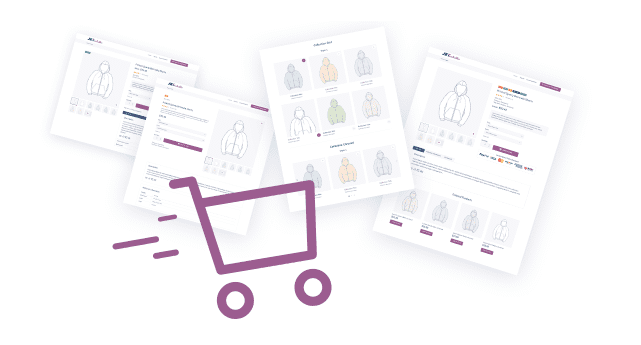
Jet Smart Filters for Elementor WordPress Plugin 2.3.10
SKU: 337
One-time payment · lifetime access to this file
- Instant download after purchase
- 100% original, unmodified GPL file
- Free lifetime updates on request
- Secure Razorpay / PayPal checkout
Product details
- Version on file
- 2.3.10
- Type
- theme
- Released
- 15-02-2022
- File size
- 1.91 MB
- License
- GPL
About Jet Smart Filters for Elementor WordPress Plugin 2.3.10
Jet Smart Filters is a plugin from Zemez, part of the Jet family for Elementor. It adds filter widgets that let visitors narrow a list of items, such as products, posts or custom listings, by choosing options like categories, tags or ranges.
It works alongside Elementor, so you place filter widgets on a page and connect them to a listing widget on the same page. It is a filter layer for existing listings, not a listing builder by itself. The file on record is version 2.3.10, from February 2022, and the listing text mentions a different version number, so test on staging with your current Elementor and WordPress versions.
Which listings it supports depends on the other Jet plugins and Elementor features you use. Check the documentation in the package.
Requirements
- Elementor
- WooCommerce, if you filter products
Key features
- Filter widgets for Elementor
- Adds widgets you place on a page to filter a list of items.
- Works with listing widgets
- Filters are linked to a listing on the same page, so results update for visitors.
- Part of the Jet family
- Made by Zemez to sit beside the other Jet plugins for Elementor.
- Product and post filtering
- Filters can narrow WooCommerce products or posts when the matching listing widget is present.
- No-code setup
- Filters are configured in the Elementor editor without writing code.
Is it right for you?
A good fit for
- Elementor sites with product or post grids that need visitor filtering
- Directories and catalogues built with Jet plugins
Look elsewhere if
- Sites that do not use Elementor
- Shops that need a standalone filter plugin working with any theme or page builder
How to install Jet Smart Filters for Elementor WordPress Plugin 2.3.10
- 1
Download the file
Open My Account → Downloads and download the product. If the archive contains several zips (documentation, child theme, licensing files), you need the one named after the product.
- 2
Upload it to WordPress
In your dashboard go to Plugins → Add New Plugin → Upload Plugin and choose the zip.
- 3
Install and activate
Click Install Now, then Activate. If an older or free copy is already installed, WordPress offers to replace it with the uploaded version.
Notes for this product
- Jet plugins are designed to work with each other and with a listing widget. Check which companion Jet plugin provides the listing you want to filter.
Setup: using Jet Smart Filters for Elementor WordPress Plugin 2.3.10
- Test on a staging copy. The file is from February 2022, so try it with your current Elementor and WordPress first.
- Build the listing. Place a products or posts listing widget on your page in Elementor.
- Create filters. In the plugin's admin menu, add filters for categories, tags or other fields.
- Add filter widgets to the page. Drop the filter widgets onto the page in Elementor and link them to the listing.
- Test filtering. Open the page, apply filters and confirm the results change as expected.
Common problems and fixes
Filters change nothing when clicked
- Why it happens
- The filter is not linked to the listing, or the listing widget has no matching query ID.
- How to fix it
- Set the same provider and query ID on the filter widget and the listing widget.
Filtering works on a page but not after caching is on
- Why it happens
- A cache or minify plugin is blocking the plugin's scripts.
- How to fix it
- Exclude the plugin's scripts from minification and clear the cache.
“The link you followed has expired.” when uploading
- Why it happens
- The zip is larger than your server's PHP upload limit (upload_max_filesize / post_max_size).
- How to fix it
- Raise the upload limit in your hosting control panel, or unzip the file and upload the folder to wp-content/plugins with your host's file manager or SFTP.
“The package could not be installed. No valid plugins were found.”
- Why it happens
- The uploaded zip is a bundle (or a theme), not the plugin itself.
- How to fix it
- Unzip the download once and upload the inner zip named after the plugin.
“Plugin could not be activated because it triggered a fatal error.”
- Why it happens
- Usually a PHP version older than the plugin needs, or a second copy of the same plugin (for example the free version) still active.
- How to fix it
- Check your PHP version under Tools → Site Health → Info, deactivate any other copy of the plugin, and enable WP_DEBUG_LOG to see the exact error.
Licence or “updates unavailable” notices
- Why it happens
- The developer's licence key isn't included. Features that call the developer's servers (template libraries, cloud APIs, automatic updates) need it.
- How to fix it
- Everything that runs locally works without it. For a newer file, use Request an update from your account.
Frequently asked questions
Does it need Elementor?
Yes. It adds widgets to Elementor and is not meant for other editors.
Can it filter WooCommerce products?
Yes, when a matching products listing widget is on the page. WooCommerce must be active.
Which version is on file?
Version 2.3.10, released February 2022. The listing text mentions a different number, so test it on staging.
Do I need other Jet plugins?
It works with listing widgets from Elementor and the Jet family. Check the documentation to see which combination you need.
Categories: Wordpress Plugins, Business, Elementor, Plugins, Wordpress
Related products
 −95%
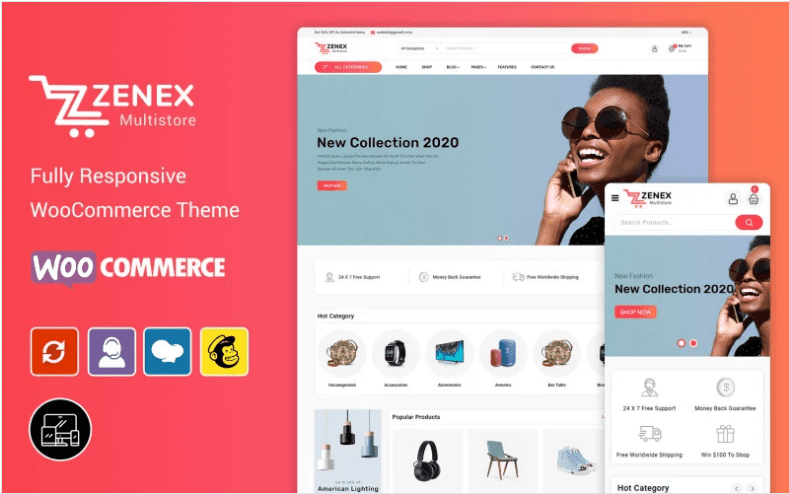
−95%Zenex – eCommerce WooCommerce Theme
 −93%
−93%Yottis | Personal Creative Portfolio WordPress Theme + Store 1.0
 −93%
−93%YITH WooCommerce Quick Checkout for Digital Goods Premium 1.26.0
 −93%
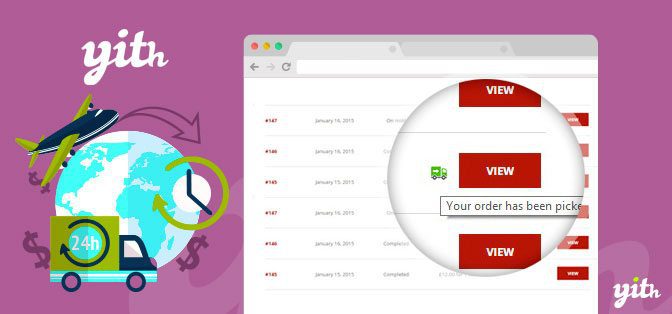
−93%YITH WooCommerce Order Tracking Premium 2.14.0
 −93%
−93%YITH PayPal Payouts for WooCommerce 1.0.23
 −93%
−93%Yankee – Insurance & Consulting WordPress Theme 1.3
 −92%
−92%XPromoter – Top Bar Switcher Responsive WordPress Plugin 1.3.3
−92%