
 Preview not available
IThemes BackupBuddy WordPress Plugin
Version 9.0.0
SKU: 4246
One-time payment · lifetime access to this file
- Instant download after purchase
- 100% original, unmodified GPL file
- Free lifetime updates on request
- Secure Razorpay / PayPal checkout
Product details
- Version on file
- 9.0.0
- Developer
- iThemes
- Released
- 2022/09/05
- File size
- 10.47 MB
- License
- GPL
About IThemes BackupBuddy WordPress Plugin 9.0.0
BackupBuddy is a WordPress backup plugin from iThemes. It saves your site, files and database, as a single backup you can schedule, send to remote storage and keep a number of copies of. The same backup can be used to restore the site after a problem or to move it to a new host or domain.
Backups can go to remote destinations such as Dropbox, Amazon S3, Google Drive and FTP or SFTP, so they don't sit only on the server that might fail. It can also run a malware scan on your site and its files. You can choose full backups or backups of just the database or files, depending on how often parts of your site change.
Some of BackupBuddy's extras, such as iThemes' own cloud storage, rely on an iThemes account, which this download doesn't include. Use one of the standard destinations instead, and keep one copy of every backup off your server.
Key features
- Scheduled backups
- Back up your site automatically on a schedule, and keep a set number of copies.
- Full, database and file backups
- Choose a complete backup, or only the database or the files.
- Remote destinations
- Send backups to Dropbox, Amazon S3, Google Drive, FTP or SFTP, among other options.
- Restore from a backup
- Bring the site back from a saved backup after an error or a hack.
- Migrate to a new host
- Use a backup to move a site to a new host or domain.
- Malware scan
- Scan your site's files for signs of malware.
Is it right for you?
A good fit for
- Site owners who want scheduled backups and a way to restore or move the site from the same plugin
- Agencies migrating client sites between hosts
- Sites that want backups sent to a remote service
Look elsewhere if
- Busy shops where orders arrive constantly, since scheduled backups can lose what happened after the last run
- Anyone relying on iThemes' own cloud storage, which needs an iThemes account
How to install IThemes BackupBuddy WordPress Plugin 9.0.0
- 1
Download the file
Open My Account → Downloads and download the product. If the archive contains several zips (documentation, child theme, licensing files), you need the one named after the product.
- 2
Upload it to WordPress
In your dashboard go to Plugins → Add New Plugin → Upload Plugin and choose the zip.
- 3
Install and activate
Click Install Now, then Activate. If an older or free copy is already installed, WordPress offers to replace it with the uploaded version.
Notes for this product
- A backup is only safe when a copy lives off your server. Set up a remote destination right after activating, and test a restore on a staging copy.
Setup: using IThemes BackupBuddy WordPress Plugin 9.0.0
- Open the BackupBuddy menu. After activating, open BackupBuddy in your dashboard menu and review the settings.
- Add a remote destination. Choose a service such as Dropbox, Amazon S3, Google Drive or FTP, and authorise it.
- Set a schedule. Choose how often to back up, the type of backup and how many copies to keep.
- Run a manual backup. Start a backup by hand and confirm it appears in your remote destination.
- Test a restore. Restore the backup on a staging copy, so you know the process works before an emergency.
- Check on your backups regularly. Look at the backup list and your remote storage now and then to confirm backups are still running.
Common problems and fixes
A backup stalls or fails with a timeout
- Why it happens
- Your host's time or memory limits are too low for the size of the site.
- How to fix it
- Open the advanced settings, reduce the amount processed per step, back up files and the database separately, and ask your host to raise its limits.
Scheduled backups never run
- Why it happens
- WordPress's scheduled-task system only runs when someone visits the site, and it may be disabled on your host.
- How to fix it
- Visit the site to trigger it, or set up a real server cron job that calls wp-cron.php regularly.
A remote destination reports an authentication error
- Why it happens
- The connection to the storage service has expired, or the iThemes cloud destination is being used without an account.
- How to fix it
- Re-authorise the destination, or switch to Dropbox, Amazon S3, Google Drive or FTP.
“The link you followed has expired.” when uploading
- Why it happens
- The zip is larger than your server's PHP upload limit (upload_max_filesize / post_max_size).
- How to fix it
- Raise the upload limit in your hosting control panel, or unzip the file and upload the folder to wp-content/plugins with your host's file manager or SFTP.
“The package could not be installed. No valid plugins were found.”
- Why it happens
- The uploaded zip is a bundle (or a theme), not the plugin itself.
- How to fix it
- Unzip the download once and upload the inner zip named after the plugin.
“Plugin could not be activated because it triggered a fatal error.”
- Why it happens
- Usually a PHP version older than the plugin needs, or a second copy of the same plugin (for example the free version) still active.
- How to fix it
- Check your PHP version under Tools → Site Health → Info, deactivate any other copy of the plugin, and enable WP_DEBUG_LOG to see the exact error.
Licence or “updates unavailable” notices
- Why it happens
- The developer's licence key isn't included. Features that call the developer's servers (template libraries, cloud APIs, automatic updates) need it.
- How to fix it
- Everything that runs locally works without it. For a newer file, use Request an update from your account.
Alternatives to IThemes BackupBuddy WordPress Plugin 9.0.0
| Product | Choose it if | Price |
|---|---|---|
| UpdraftPlus WordPress Backup Plugin 2.23.14.26 | you want a backup plugin focused on scheduled cloud backups with a simple restore screen. | $4.65 |
| Duplicator Pro WordPress Plugin 4.0.6.2 | your main goal is moving or cloning a site to a new host or domain. | $4.25 |
| WPMU DEV Snapshot Pro 4.8.2 | you want backups managed alongside other WPMU DEV tools for your sites. | $4.25 |
Frequently asked questions
Where are the backups stored?
On your server by default, and on the remote destinations you add, such as Dropbox, Amazon S3, Google Drive or FTP. Keep at least one copy off the server.
Can I use it to move a site?
Yes. A backup can be used to restore a site on a new host or domain.
Does it need an iThemes account?
Some extras, such as iThemes' own cloud storage, do. The standard destinations work without it.
How often should I back up?
As often as your site changes. A brochure site might back up weekly. A site that takes orders or comments daily should back up its database daily.
Categories: Backup wordpress plugin
Related products
 −86%
−86%MyThemeShop My WP Backup Pro WordPress Plugin 1.3.12
 −93%
−93%UpdraftPlus WordPress Backup Plugin 2.23.14.26
 −91%
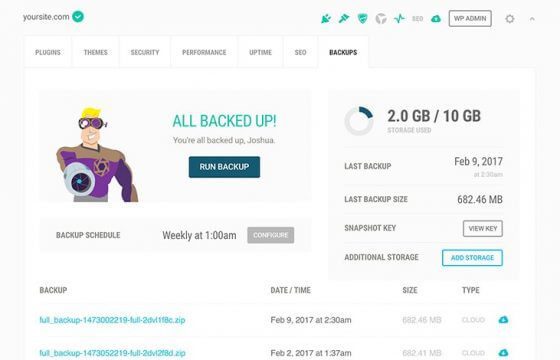
−91%WPMU DEV Snapshot Pro 4.8.2
 −93%
−93%MainWP Backup WordPress 1.5
 −95%
−95%Duplicator Pro WordPress Plugin 4.0.6.2
 −93%
−93%MainWP UpdraftPlus Extension 4.0.4
 −93%
−93%MainWP BackWPup Extension 4.0.7
−92%