
YellowPencil Visual CSS Style Editor 7.5.4
SKU: 6973
One-time payment · lifetime access to this file
- Instant download after purchase
- 100% original, unmodified GPL file
- Free lifetime updates on request
- Secure Razorpay / PayPal checkout
Product details
- Version on file
- 7.5.4
- Type
- plugin
- Released
- 30-12-2021
- File size
- 5.48 MB
- License
- GPL
About YellowPencil Visual CSS Style Editor 7.5.4
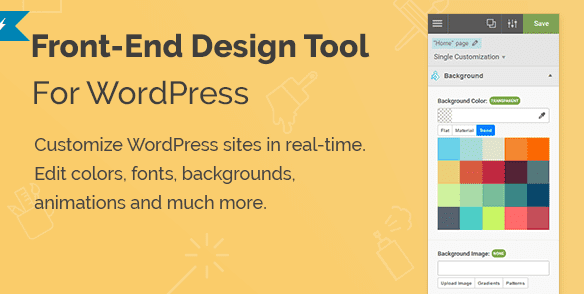
YellowPencil is a WordPress plugin for changing how your site looks without writing CSS by hand. You open a page, click any element, and adjust its properties in a visual editor while the page updates live. The plugin writes the CSS for you and applies it to your site.
It covers the common styling jobs: fonts, colours, backgrounds, spacing, borders and shadows, with drag-and-drop and visual controls for margin, padding and size. A responsive tool lets you adjust the design for different screen sizes, and a built-in animation manager lets you add motion to elements. For people who do know CSS, there is also a live CSS editor.
It restyles what already exists, rather than building page layouts. Because the plugin applies your changes, export your stylesheet before you ever deactivate it if you want to keep them.
Key features
- Click any element
- Customise any page and any element, with the CSS selectors worked out for you.
- 50+ CSS properties
- Edit text, background, spacing, border, position, size, shadow, filter and other properties from visual controls.
- Drag, resize and measure
- Move and resize elements, edit margin and padding visually, and measure distances on the page.
- Responsive tool
- Adjust styles for different screen sizes and see the result before you save.
- Animation manager and generator
- Add animations to elements, with 50+ animations to start from.
- Design assets
- 800+ font families, 300+ background patterns and ready-made colour palettes.
- Live CSS editor
- Write or tweak CSS directly alongside the visual controls, with undo and redo.
- Export stylesheet
- Export your changes as a stylesheet file, or export and import settings between sites.
Is it right for you?
A good fit for
- Site owners who want to tweak fonts, colours and spacing without learning CSS
- Designers adjusting a theme's look on a client site
- Developers who want a faster way to find selectors and test styles
Look elsewhere if
- Anyone who wants to build whole page layouts block by block, which is a page builder's job
- Teams that keep all styling in theme code under version control
- Sites that don't want their styling to depend on a plugin
How to install YellowPencil Visual CSS Style Editor 7.5.4
- 1
Download the file
Open My Account → Downloads and download the product. If the archive contains several zips (documentation, child theme, licensing files), you need the one named after the product.
- 2
Upload it to WordPress
In your dashboard go to Plugins → Add New Plugin → Upload Plugin and choose the zip.
- 3
Install and activate
Click Install Now, then Activate. If an older or free copy is already installed, WordPress offers to replace it with the uploaded version.
Setup: using YellowPencil Visual CSS Style Editor 7.5.4
- Open the editor on a page. While logged in, open the page you want to style and start YellowPencil from its entry in the admin menu or toolbar.
- Choose where changes apply. Decide whether your styles affect just this page, a type of page or the whole site.
- Click an element to restyle it. Select an element and change its font, colour, background, spacing or size in the editor panel.
- Adjust for other screen sizes. Use the responsive tool to refine the design for tablets and phones.
- Save and check the live page. Save your changes, then view the page while logged out to see the result.
- Export your stylesheet. Export the CSS so you have a copy independent of the plugin.
Common problems and fixes
The editor won't load the page, or stays on a loading screen
- Why it happens
- Security headers that stop the page loading inside the editor, mixed http and https content, or a caching and minification plugin.
- How to fix it
- Make sure the site loads fully over https, turn off minification and combining for logged-in users, and clear all caches.
Styles show in the editor but not on the live site
- Why it happens
- A page cache or CDN is serving the old CSS, or the styles were saved for a different page scope.
- How to fix it
- Clear your page cache and CDN, then check that the style was set to apply to the pages you meant.
Your styling disappears after deactivating the plugin
- Why it happens
- The plugin is what applies the CSS it generates, so removing it removes the styles.
- How to fix it
- Export your stylesheet first and add it to your theme or Customizer's Additional CSS before deactivating.
“The link you followed has expired.” when uploading
- Why it happens
- The zip is larger than your server's PHP upload limit (upload_max_filesize / post_max_size).
- How to fix it
- Raise the upload limit in your hosting control panel, or unzip the file and upload the folder to wp-content/plugins with your host's file manager or SFTP.
“The package could not be installed. No valid plugins were found.”
- Why it happens
- The uploaded zip is a bundle (or a theme), not the plugin itself.
- How to fix it
- Unzip the download once and upload the inner zip named after the plugin.
“Plugin could not be activated because it triggered a fatal error.”
- Why it happens
- Usually a PHP version older than the plugin needs, or a second copy of the same plugin (for example the free version) still active.
- How to fix it
- Check your PHP version under Tools → Site Health → Info, deactivate any other copy of the plugin, and enable WP_DEBUG_LOG to see the exact error.
Licence or “updates unavailable” notices
- Why it happens
- The developer's licence key isn't included. Features that call the developer's servers (template libraries, cloud APIs, automatic updates) need it.
- How to fix it
- Everything that runs locally works without it. For a newer file, use Request an update from your account.
Alternatives to YellowPencil Visual CSS Style Editor 7.5.4
| Product | Choose it if | Price |
|---|---|---|
| WPBakery Page Builder for WordPress (formerly Visual Composer) 8.1 | you want to build page layouts from rows and elements rather than restyle what's already on the page. | $4.59 |
| Thrive Visual Editor / Architect 3.27 | you want to design landing and marketing pages visually on the live page. | $4.49 |
Frequently asked questions
Do I need to know CSS?
No. The visual controls write the CSS for you, and a live CSS editor is there if you do want to edit code.
Will theme updates erase my changes?
Your changes are stored by the plugin, not in the theme's files, so a theme update shouldn't remove them.
Can I take my styles with me?
Yes. You can export your changes as a stylesheet, and export and import settings.
Does it work on any theme?
It works on the front end of your site, so it generally works with any theme. Themes that load styles in unusual ways can need extra selectors.
Is it a page builder?
No. It changes the look of existing elements. A page builder is the tool for creating new layouts.