
 Preview not available
Thrive Architect
Version 3.5.1
SKU: 108
One-time payment · lifetime access to this file
- Instant download after purchase
- 100% original, unmodified GPL file
- Free lifetime updates on request
- Secure Razorpay / PayPal checkout
Product details
- Version on file
- 3.4
- Type
- plugin
- Released
- 07-11-2021
- File size
- 15.87 MB
- License
- GPL
About Thrive Architect 3.5.1
Thrive Architect is a visual page builder from Thrive Themes. You edit on the live page: click an element, change it, and see the result as you work. It is built with marketing pages in mind, such as landing pages, sales pages and opt-in pages, and it also works on ordinary pages and posts.
Its elements lean towards conversion: content boxes, styled buttons, testimonials, countdown timers, columns, lists and forms for collecting email addresses, plus blocks you can save and reuse. It works with most WordPress themes, so you don't have to adopt Thrive's own theme to use it.
The store lists more than one Thrive Architect file, and the product has also been listed as Thrive Visual Editor. Check the version on file and release date in the product details to choose the file you want. Thrive's plugins are normally licensed through Thrive's own tools, so online features such as downloading ready-made landing page templates may not work in this copy.
Key features
- Front-end editing
- Edit directly on the page and see changes as you make them, the way visitors will see them.
- Marketing elements
- Content boxes, styled buttons, testimonials, countdown timers and similar blocks aimed at getting visitors to act.
- Landing page templates
- Start from a ready-made landing page layout instead of a blank page. Template downloads come from Thrive's servers.
- Lead capture forms
- Add sign-up forms and connect them to an email marketing service so new subscribers go straight to your list.
- Reusable blocks
- Save a section you've built and drop it into other pages, so repeated sections stay consistent.
- Responsive controls
- Preview and adjust the layout for tablet and mobile screens.
- Works with most themes
- Use it with the theme you already have instead of switching to a particular one.
Is it right for you?
A good fit for
- Marketers who build landing pages, sales pages and opt-in pages and want to edit them visually
- Site owners who want to design on the live page instead of in a separate backend editor
- Sites that already use other Thrive Themes plugins and want the same look and workflow
Look elsewhere if
- Sites that need to design headers, footers and site-wide templates, which Thrive sells as a separate product
- Anyone who needs Thrive's online template library and updates to work, since those depend on a licensed connection this file doesn't include
How to install Thrive Architect 3.5.1
- 1
Download the file
Open My Account → Downloads and download the product. If the archive contains several zips (documentation, child theme, licensing files), you need the one named after the product.
- 2
Upload it to WordPress
In your dashboard go to Plugins → Add New Plugin → Upload Plugin and choose the zip.
- 3
Install and activate
Click Install Now, then Activate. If an older or free copy is already installed, WordPress offers to replace it with the uploaded version.
Notes for this product
- Thrive's own products normally rely on Thrive's product manager plugin for licensing and updates. Check whether the package you download includes anything extra to install.
Setup: using Thrive Architect 3.5.1
- Open a page in the builder. Create or open a page and click Edit with Thrive Architect to load the page in the front-end editor.
- Choose a starting point. Begin from a blank page, a saved layout or, if template downloads work for you, a landing page template.
- Add and edit elements. Drag elements from the sidebar onto the page, then click any element to change its text, colours, spacing and fonts.
- Connect a sign-up form. Add a lead capture element and connect it to your email marketing service so submissions reach your list.
- Check tablet and mobile views. Use the responsive preview to check that columns stack and text stays readable on smaller screens.
- Save reusable sections and publish. Save sections you will reuse, then update or publish the page and view it while logged out.
Common problems and fixes
The editor stays blank or keeps loading
- Why it happens
- A caching or optimisation plugin, a security plugin or a theme conflict is blocking the editor's scripts.
- How to fix it
- Turn off script optimisation for logged-in users, deactivate other plugins one at a time to find the conflict, and check the browser console for the first error.
Landing page templates won't download
- Why it happens
- Templates are fetched from Thrive's servers, which needs a licensed connection that this download doesn't include.
- How to fix it
- Build the page from blocks and elements instead, or reuse templates you saved earlier.
The live page looks different from the editor
- Why it happens
- A page cache is serving an old version, or the theme's CSS is overriding some styles.
- How to fix it
- Clear your page cache and CDN, then view the page while logged out. If the difference remains, check the theme's custom CSS.
“The link you followed has expired.” when uploading
- Why it happens
- The zip is larger than your server's PHP upload limit (upload_max_filesize / post_max_size).
- How to fix it
- Raise the upload limit in your hosting control panel, or unzip the file and upload the folder to wp-content/plugins with your host's file manager or SFTP.
“The package could not be installed. No valid plugins were found.”
- Why it happens
- The uploaded zip is a bundle (or a theme), not the plugin itself.
- How to fix it
- Unzip the download once and upload the inner zip named after the plugin.
“Plugin could not be activated because it triggered a fatal error.”
- Why it happens
- Usually a PHP version older than the plugin needs, or a second copy of the same plugin (for example the free version) still active.
- How to fix it
- Check your PHP version under Tools → Site Health → Info, deactivate any other copy of the plugin, and enable WP_DEBUG_LOG to see the exact error.
Licence or “updates unavailable” notices
- Why it happens
- The developer's licence key isn't included. Features that call the developer's servers (template libraries, cloud APIs, automatic updates) need it.
- How to fix it
- Everything that runs locally works without it. For a newer file, use Request an update from your account.
Frequently asked questions
Does it work with any WordPress theme?
It works with most themes. Designing headers, footers and site-wide templates is a separate job that Thrive sells as its own product.
Is Thrive Architect the same as Thrive Visual Editor?
The store lists the plugin under both names, and the product has been known by each. Check the version on file in the product details of the file you choose.
Can I build landing pages with it?
Yes, that is its main use. Starting templates are downloaded from Thrive's servers, so you may need to build from blocks and elements instead.
What happens to my pages if I deactivate it?
Pages built with it rely on the plugin for their layout and styling, so deactivating it can change how they look. Keep a backup before removing it.
Can I use it on blog posts as well as pages?
Yes. You can open posts and pages in the editor alike.
Categories: ecommerce theme, Premium Theme
Related products
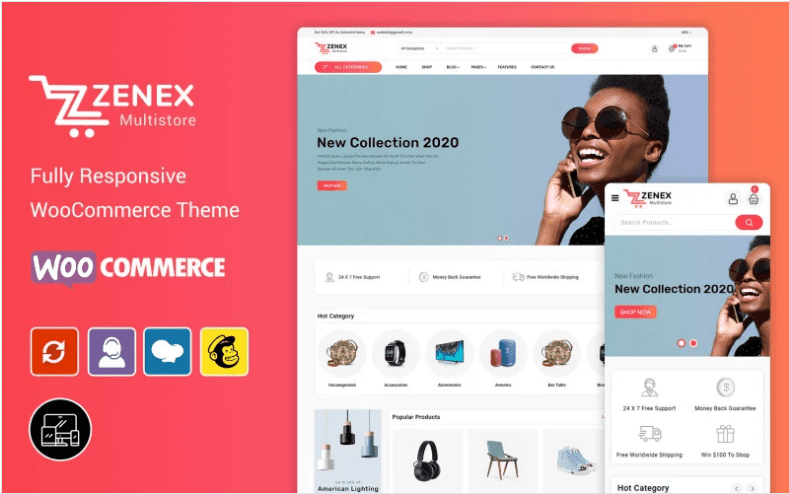 −95%
−95%Zenex – eCommerce WooCommerce Theme
 −93%
−93%Zarja – WordPress Blog Theme
 −93%
−93%Yottis | Personal Creative Portfolio WordPress Theme + Store 1.0
 −93%
−93%Yankee – Insurance & Consulting WordPress Theme 1.3
 −93%
−93%WPMU DEV Fixer WordPress Theme 1.4.1
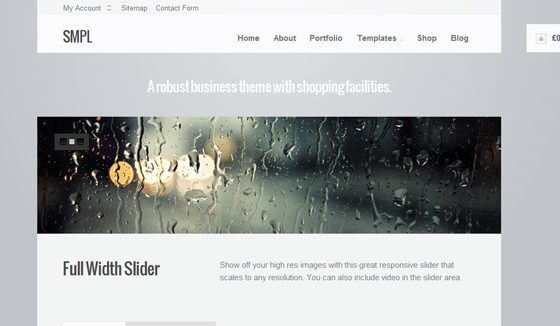 −93%
−93%WooThemes SMPL Premium Theme 1.4.5
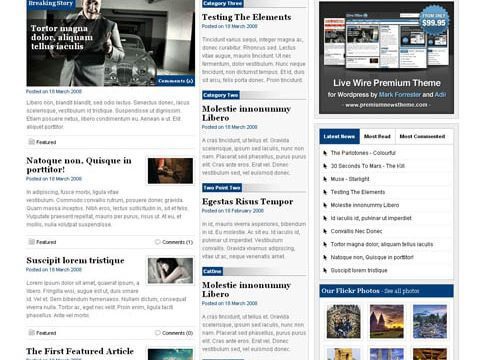 −93%
−93%WooThemes Live Wire Premium Theme 2.5.2
 −88%
−88%