
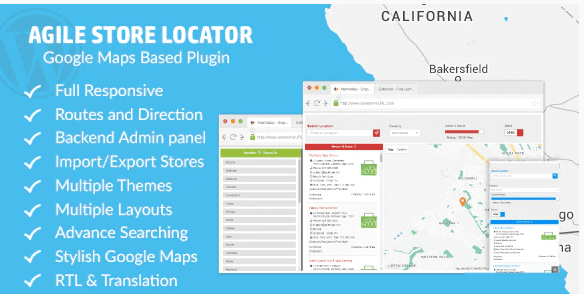
Store Locator (Google Maps) For WordPress
Version 6.5
SKU: 8471
One-time payment · lifetime access to this file
- Instant download after purchase
- 100% original, unmodified GPL file
- Free lifetime updates on request
- Secure Razorpay / PayPal checkout
Product details
- Version on file
- 6.5
- Type
- Plugin
- Released
- October 31, 2019
About Store Locator (Google Maps) For WordPress 6.5
Store Locator (Google Maps) for WordPress is a plugin for showing business locations on a Google map. The slug carries an older version number, but the title and the file on record say version 6.5. The store files it under plugins and storefront extensions.
The listing doesn't describe its features, so check the documentation in the package for search options, categories and shortcodes. Google Maps plugins generally need a Google Maps API key tied to a Google Cloud project with billing enabled, and Google's terms and pricing have changed over the years. The file dates from October 2019, so test it on a staging site.
Requirements
- WordPress
- A Google Maps API key
Key features
- Store locations on a map
- Lets visitors see your shops or branches on a Google map.
- WordPress plugin
- Installs and runs inside your WordPress admin.
- Storefront extension category
- Filed under store and storefront extensions, which fits multi-branch businesses.
- Feature list not stated
- Search radius, categories and import options aren't listed; check the package documentation.
Is it right for you?
A good fit for
- Businesses with several branches that want a find-a-store page
- Retailers who list stockists on their site
Look elsewhere if
- Sites that want a map without any Google Maps account or key
- Single-location businesses, where a simple embedded map is enough
How to install Store Locator (Google Maps) For WordPress 6.5
- 1
Download the file
Open My Account → Downloads and download the product. If the archive contains several zips (documentation, child theme, licensing files), you need the one named after the product.
- 2
Upload it to WordPress
In your dashboard go to Plugins → Add New Plugin → Upload Plugin and choose the zip.
- 3
Install and activate
Click Install Now, then Activate. If an older or free copy is already installed, WordPress offers to replace it with the uploaded version.
Notes for this product
- Google Maps features need an API key from Google Cloud with the relevant Maps APIs enabled. Check the plugin documentation for which ones.
Setup: using Store Locator (Google Maps) For WordPress 6.5
- Test on staging. Install and activate the plugin on a copy of your site.
- Add your Google Maps API key. Enter the key in the plugin settings, as described in its documentation.
- Add your locations. Enter each store with its address and contact details.
- Place the locator on a page. Add the shortcode or block described in the documentation to a page.
- Test a search. Search for an address and check that the markers and results appear.
Common problems and fixes
The map is grey or shows a Google error message such as "This page can't load Google Maps correctly"
- Why it happens
- The API key is missing, restricted to the wrong domain, or billing is not enabled in Google Cloud.
- How to fix it
- Check the key, its domain restrictions, enabled Maps APIs and billing in the Google Cloud console.
“The link you followed has expired.” when uploading
- Why it happens
- The zip is larger than your server's PHP upload limit (upload_max_filesize / post_max_size).
- How to fix it
- Raise the upload limit in your hosting control panel, or unzip the file and upload the folder to wp-content/plugins with your host's file manager or SFTP.
“The package could not be installed. No valid plugins were found.”
- Why it happens
- The uploaded zip is a bundle (or a theme), not the plugin itself.
- How to fix it
- Unzip the download once and upload the inner zip named after the plugin.
“Plugin could not be activated because it triggered a fatal error.”
- Why it happens
- Usually a PHP version older than the plugin needs, or a second copy of the same plugin (for example the free version) still active.
- How to fix it
- Check your PHP version under Tools → Site Health → Info, deactivate any other copy of the plugin, and enable WP_DEBUG_LOG to see the exact error.
Licence or “updates unavailable” notices
- Why it happens
- The developer's licence key isn't included. Features that call the developer's servers (template libraries, cloud APIs, automatic updates) need it.
- How to fix it
- Everything that runs locally works without it. For a newer file, use Request an update from your account.
Alternatives to Store Locator (Google Maps) For WordPress 6.5
| Product | Choose it if | Price |
|---|---|---|
| Super Store Finder for WordPress 6.6 | you want another dedicated store finder to compare. | $3.99 |
| WP Google Maps Map Plugin for WordPress 2.2.0 | you need a general Google Maps plugin rather than a store locator. | $3.99 |
Frequently asked questions
Do I need a Google Maps API key?
Almost certainly. Google Maps plugins generally need one; confirm in the plugin documentation.
Which version is it?
The file on record is version 6.5, although the slug carries a different number.
Does it work with WooCommerce?
The listing doesn't state WooCommerce integration.
Will it work with current WordPress?
The file dates from October 2019, so test it on a staging site first.
Categories: Blog, Plugins, Wordpress, activity, Store, Storefront Extensions, Business Service, Blog News Magazine
Related products
 −94%
−94%Zyra – The Clean, Minimal Shopify Theme
 −95%
−95%Zenex – eCommerce WooCommerce Theme
 −93%
−93%Zarja – WordPress Blog Theme
 −93%
−93%Yottis | Personal Creative Portfolio WordPress Theme + Store 1.0
 −93%
−93%YITH WooCommerce Quick Checkout for Digital Goods Premium 1.26.0
 −93%
−93%YITH WooCommerce Order Tracking Premium 2.14.0
 −93%
−93%YITH PayPal Payouts for WooCommerce 1.0.23
 −93%
−93%